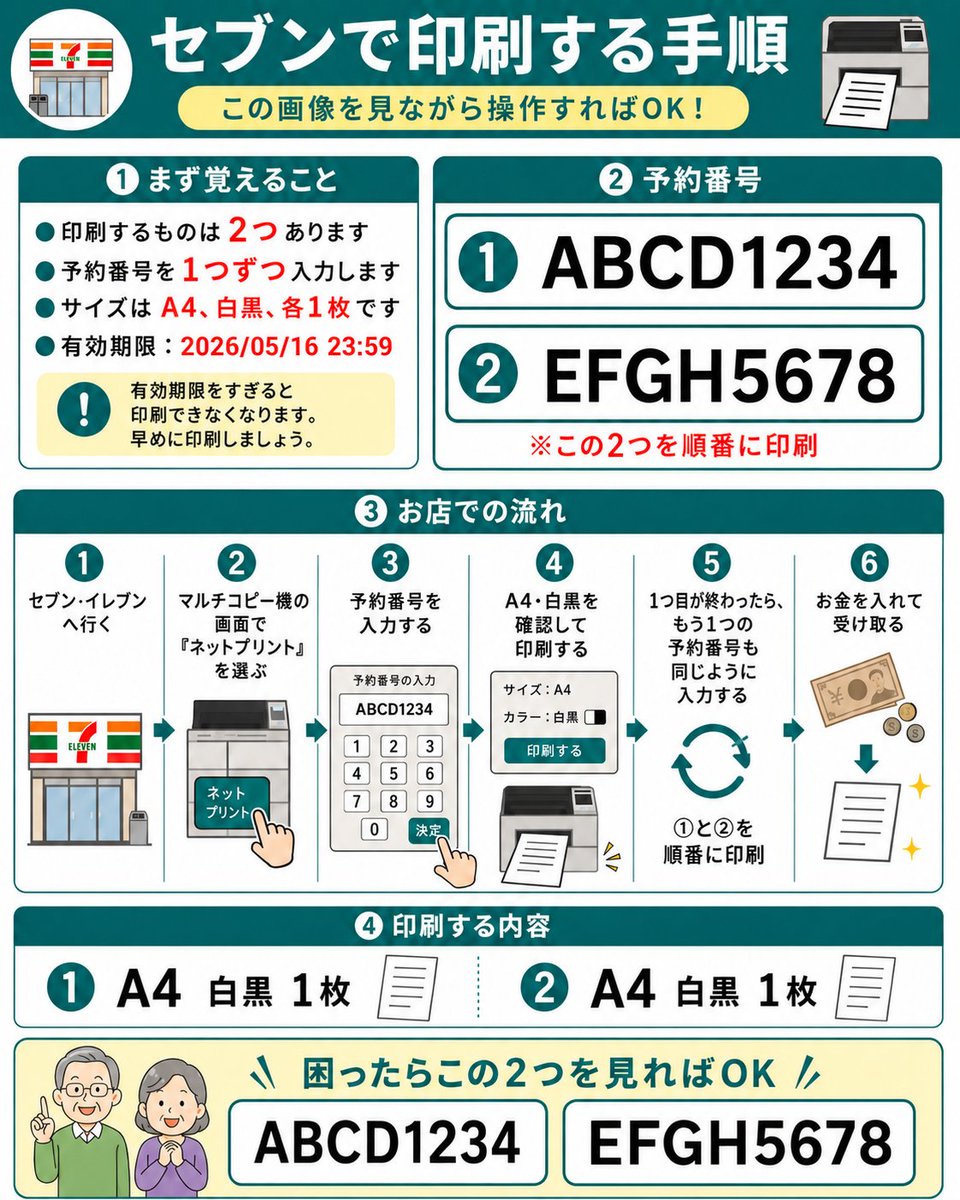
7-Eleven Net Print Instruction Sheet
A square Japanese infographic that explains how to print two reserved documents at a 7-Eleven net-print copier using reservation numbers.
This is a gpt-image-2 prompt case for Graphic & Poster. Use the copy-ready prompt below to generate similar visuals, and review YouMind OpenLab awesome-gpt-image-2 attribution plus commercial-use rights before reuse.
Prompt
Copy-ready prompt
Objective: To create a user-friendly, step-by-step Japanese instruction manual for printing two pre-reserved network print documents on a 7-Eleven multifunction copier. The design should be easily understandable to elderly users. Canvas: 1:1 square infographic with a white background, cyan borders, rounded card corners, bold cyan chapter titles, red emphasis text, and simple flat vector icons. The overall style is clean, high-contrast, and uses large, legible Japanese fonts, similar to a laminated instruction manual. Main Title: A dark cyan banner at the top, with a circular 7-Eleven store icon on the left and a printer icon on the right. A large white title is placed in the center.{argument name="headline text" default="Instructions for printing at 7-Eleven"} Below is a light yellow, rounded capsule-shaped subtitle.{argument name="subtitle text" default="Just follow the instructions in the image!"} Part 1, top left card, title{argument name="section one title" default="① First, remember"} This contains four cyan bullet points and one yellow warning box. The bullet points are in Japanese and indicate that two documents need to be printed, requiring the reservation number to be entered for each. The documents are A4 size, one in black and white, and expire on May 16, 2026 at 23:59. The numbers 2, 1, A4, black and white, one copy each, and the date are highlighted in red. The warning box contains a cyan exclamation mark icon and text indicating that printing will be impossible after the expiration date; please print as soon as possible. Part 2, upper right card, title.{argument name="section two title" default="② Reservation number"} Display two rows of large reservation numbers with cyan circles: the first row is {argument name="first reservation number" default="ABCD1234"} The second line is{argument name="second reservation number" default="EFGH5678"} Each line is within a white rounded rectangle with a cyan outline. A red note is added below: Please print these two documents in sequence. Part 3, the full-width card in the middle, titled "In-Store Operation Procedures" in Japanese: Shows 6 numbered vertical steps, separated by thin cyan lines, each step with a cyan circle number above it. Step 1: Go to 7-Eleven, with a store icon. Step 2: Select "Net Print" on the multifunction copier screen, with a copier touchscreen and a finger-tap icon. Step 3: Enter the appointment number, with a keyboard screen displaying ABCD1234 and a finger-tap confirmation icon. Step 4: Confirm A4 black and white and print, with a settings panel and print output icon. Step 5: After completing the first copy, enter the second appointment number in the same way, with a loop arrow and text prompting to print in sequence 1 to 2. Step 6: Insert coins and take the printout, with banknotes, coins, a down arrow, paper, and a flashing icon. Part 4, the card below, titled "Print Contents" in Japanese: Shows 2 content items. Item 1: Cyan circle 1, large text "A4 Black & White 1 copy", with a small paper icon. Item 2: Cyan circle 2, large text "A4 Black & White 1 copy", with a small paper icon. The two items are separated by a cyan dotted line. Bottom Help Bar: Light yellow rounded rectangle with two friendly elderly icons on the left, faces blurred or simplified. Add a cyan title indicating that if confused, simply look at these two numbers. Show two large boxes with borders, containing ABCD1234 and EFGH5678 respectively. Constraints: Use 4 main numbered sections plus the bottom help bar, exactly 2 appointment numbers, exactly 6 workflow steps, exactly 2 printable items, and exactly 4 bullet points in Part 1. No additional logos are added except for a simplified 7-Eleven storefront graphic. Keep all Japanese text large, legible, and neatly aligned.Prompt variables
Editable argument placeholders found in the prompt, with their default values.
Variable
headline text
Default
Instructions for printing at 7-Eleven
Variable
subtitle text
Default
Just follow the instructions in the image!
Variable
section one title
Default
① First, remember
Variable
section two title
Default
② Reservation number
Variable
first reservation number
Default
ABCD1234
Variable
second reservation number
Default
EFGH5678
Reuse and source notes
Use this prompt safely after previewing the case.
- 1.Copy the prompt or open it directly in Dovoo with the generation button.
- 2.Adjust variables, aspect ratio, and reference images for your own use case.
- 3.Before publishing or paid usage, verify source rights, attribution requirements, and brand or likeness risks.
Can I use this prompt commercially?
Commercial-use status is unknown. Review the original source, license, brand constraints, and legal requirements before paid usage.
Where does this case come from?
This case is imported from YouMind OpenLab awesome-gpt-image-2; keep attribution visible and check the source URL before reuse.