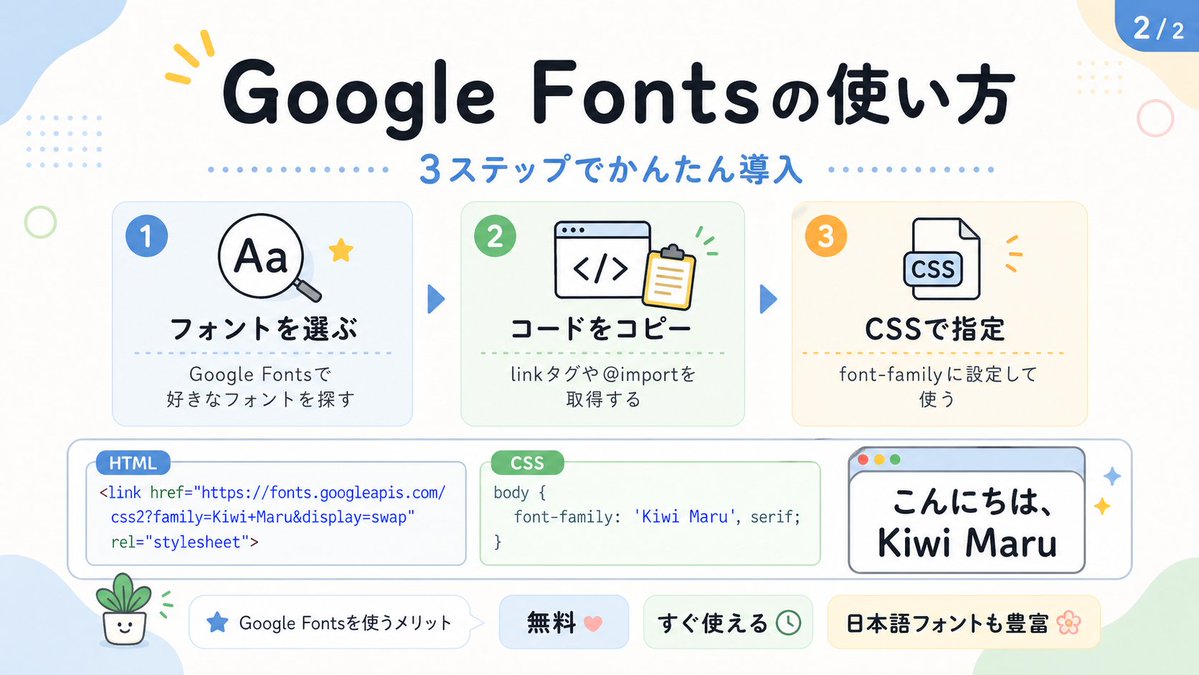
Cute Google Fonts Tutorial Infographic
This prompt generates a pastel Japanese educational infographic slide explaining Google Fonts setup in three steps, suitable for social media carousels or tech tutorial posts.
This is a gpt-image-2 prompt case for 平面海报. Use the copy-ready prompt below to generate similar visuals, and review YouMind OpenLab awesome-gpt-image-2 attribution plus commercial-use rights before reuse.

Prompt
Copy-ready prompt
Create a lovely, soft, Japanese-style infographic slide with a clean white background and soft, rounded abstract color blocks in light blue, cream, and light green. The design is friendly, educational, and modern, featuring bold, rounded Japanese typography, subtle shadows, thin gray outlines, dotted line separators, and small decorative doodles. At the top center, place a striking, deep navy blue title that reads "How to Use Google Fonts." Directly below it, add a blue subtitle that reads "Importing with 3 Steps," flanked by a row of small blue dots. In the upper right corner, add a circular blue page badge that reads "2/2." Arrange three rounded rectangular step cards evenly from left to right in the middle row at the top. Each card has a light background, soft borders, and a colorful circular badge with a number in the upper left corner. Card 1 has a light blue background and a blue badge with "1" written inside. The first card features a simple magnifying glass icon overlaid on the letter "Aa," decorated with a small yellow star. The bold title reads "Select Fonts," and the smaller text below reads "Explore Fonts You Like." Card 2 has a light green background with a green badge containing the number "2." It displays a browser window icon with parentheses "...".</> The clipboard is displayed with a small green animated marker. The bold title reads "Copy the code," and the smaller text below reads "Get the link @import ." Card 3 has a light cream background with an orange badge containing the number "3." Inside, a document icon labeled "CSS" is displayed with a small orange decorative marker. The bold title reads "Specify in CSS," and the smaller text below reads "Set up font-family." Two medium-sized blue triangular arrows are placed between the three cards to illustrate the process. In the lower center, three horizontally aligned presentation boxes are created. The left box is a rounded white code panel with a small blue label that reads "HTML." Inside, the following code is displayed in blue text, strictly divided into three lines: <link href=\"https://fonts.googleapis.com/"
"css2?family=Kiwi+Maru&display=swap"
"rel=\"stylesheet\"> The middle frame is a rounded white code panel with a small green label that says "CSS". Inside, it displays "body {" " font-family: 'Kiwi Maru', serif;" "}" in dark text. The right frame is a rounded white simulated browser window with a light blue title bar and three tiny red, yellow, and green circular window buttons in the upper left corner. Inside, it displays the black Japanese sample text "こんにちは、 Kiwi Maru" in a cute, rounded handwritten font. Two small glitter decorations are added to the right side of this browser window. At the bottom, four pill-shaped badges are placed from left to right. Badge 1 is white with a small blue star icon and the text "Google Fonts を使うメリット". Badge 2 is light blue with the bold text "無料" and a pink heart. Badge 3 is light green with the bold text "すぐ使える" and a small alarm clock icon. Badge 4... The canvas is pale yellow, featuring the bold text "日本語フォントも豊富" (Japanese vocabulary is abundant) and a small flower icon. Four additional decorative elements are added around the canvas: a yellow three-stroke glitter above the title, a light blue dotted grid in the upper left background, a thin light green ring on the left, and a miniature smiling bonsai illustration in the lower left. Maintaining the overall flat vector style, the design is clear, cute, and highly legible, reminiscent of a social media educational carousel.
More cases in this category
Prioritized by category, input mode compatibility, quality, and lower risk.
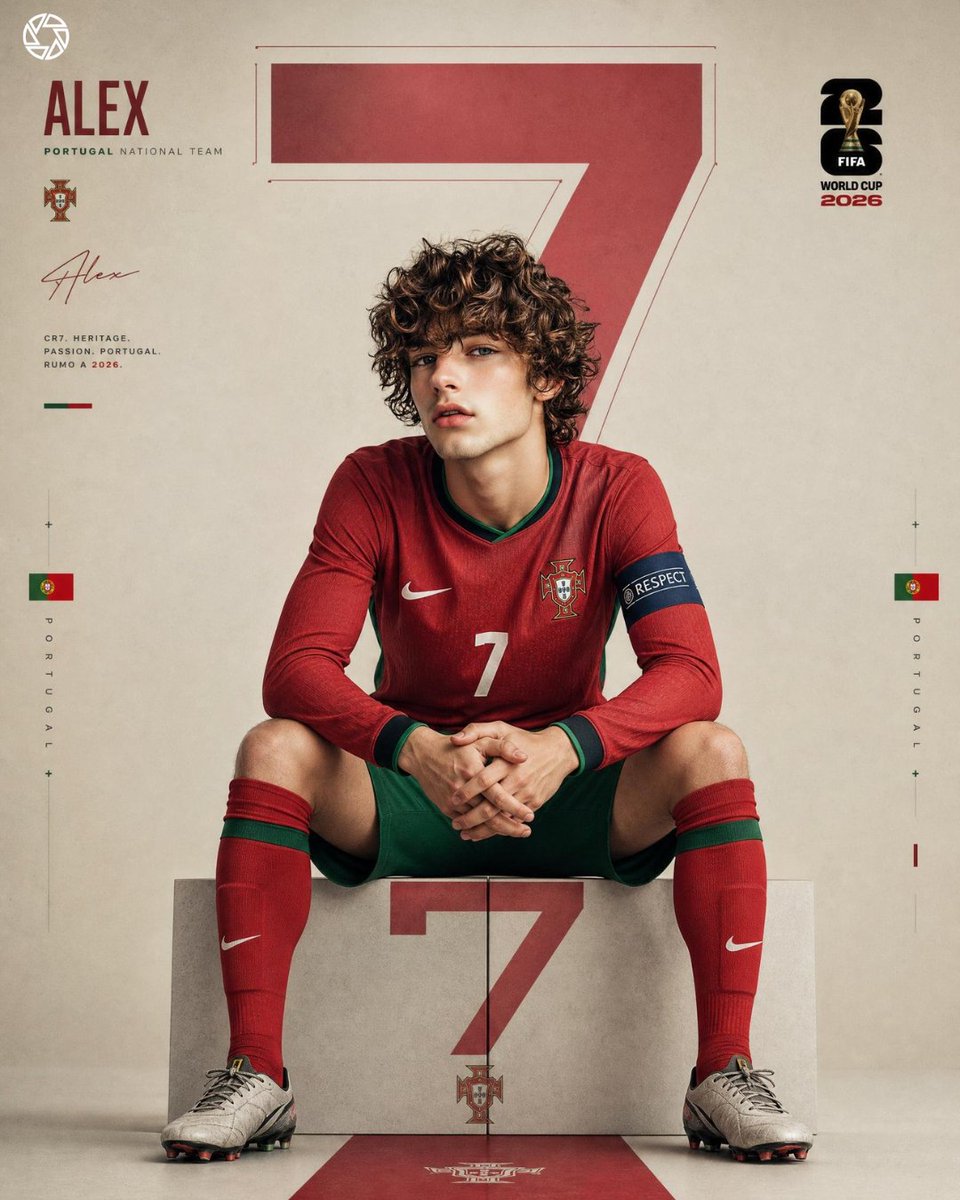
Premium Sports Editorial Poster
Text to Imageunknown
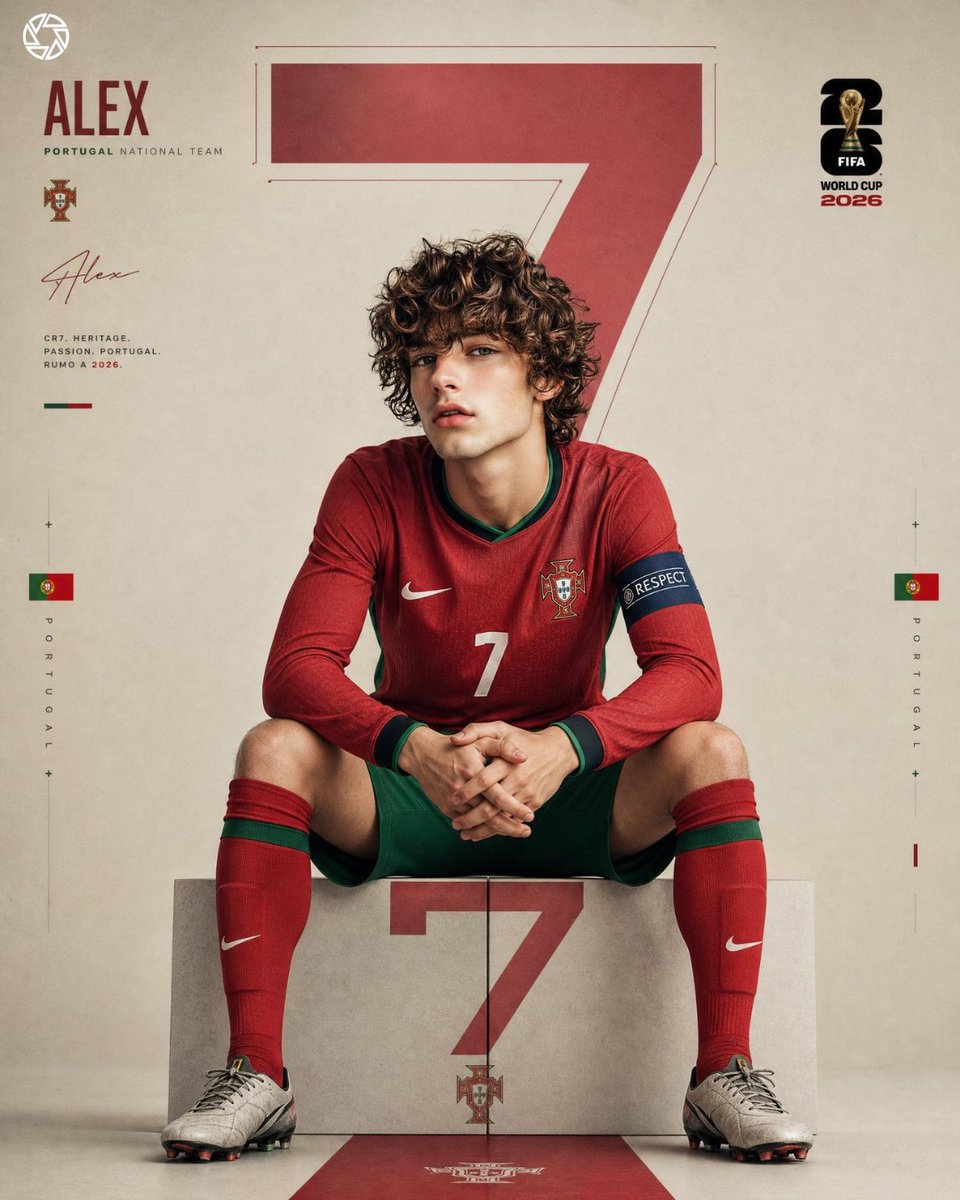
Hyper Realistic FIFA Football Poster
Text to Imageunknown
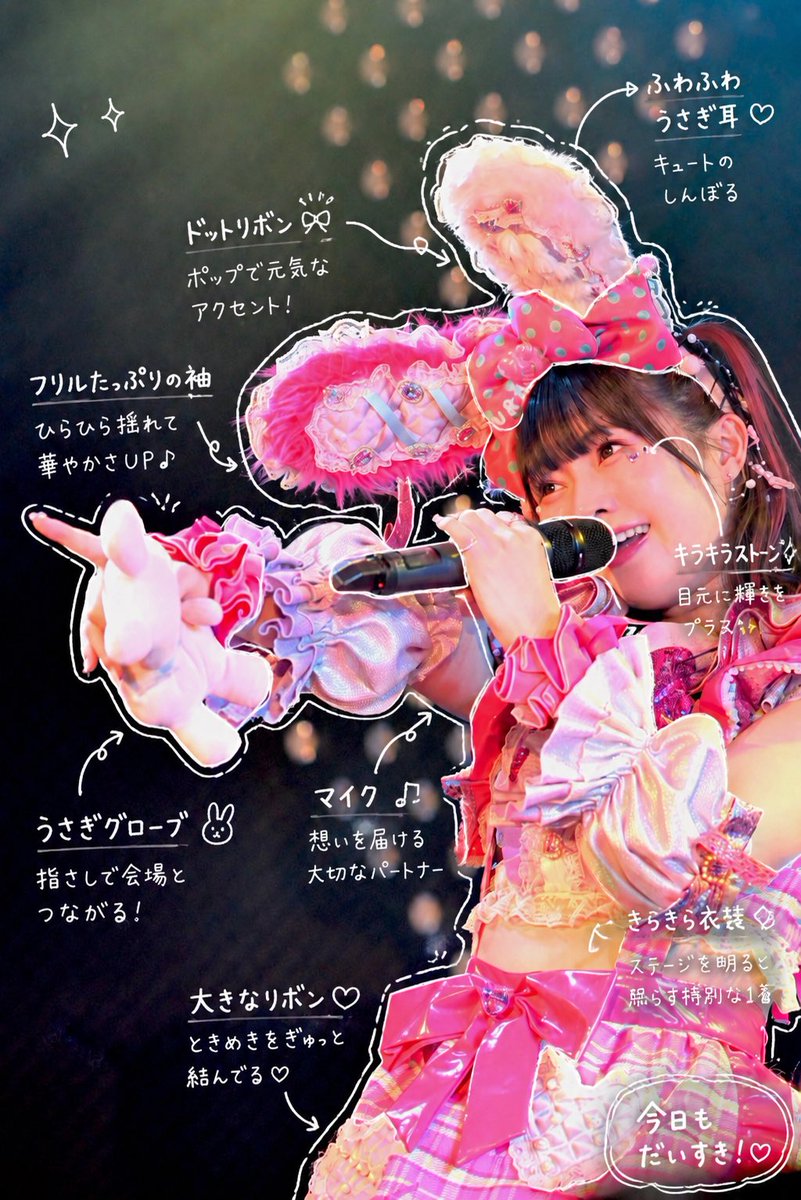
Hand-Drawn Sketch Photo Annotation
Text to Imageunknown
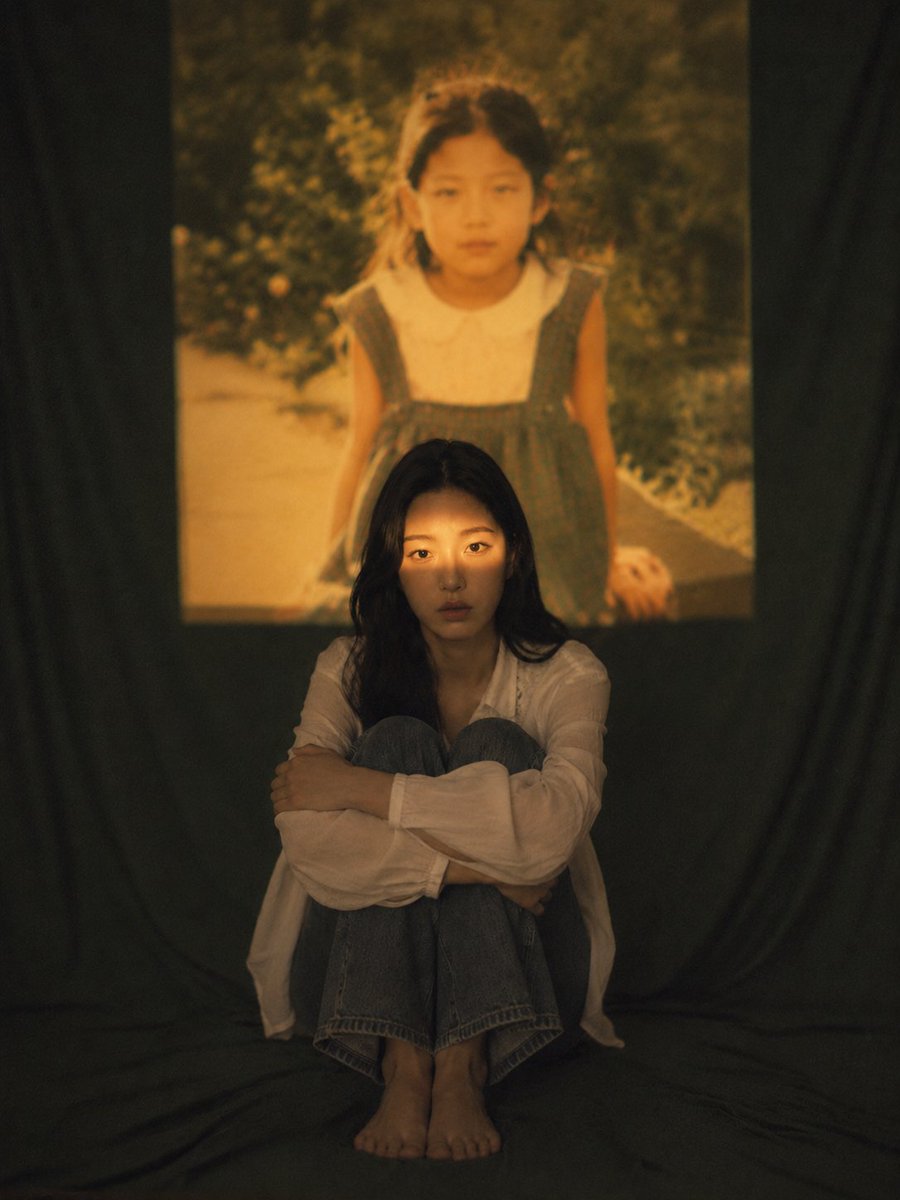
Vintage Film Projection Portrait
Image to Imageunknown

Cosmic Big Bang Snooze Comic
Text to Imageunknown

Direct Flash Editorial Portrait
Text to Imageunknown
Reuse and source notes
Use this prompt safely after previewing the case.
- 1.Copy the prompt or open it directly in Dovoo with the generation button.
- 2.Adjust variables, aspect ratio, and reference images for your own use case.
- 3.Before publishing or paid usage, verify source rights, attribution requirements, and brand or likeness risks.
Can I use this prompt commercially?
Commercial-use status is unknown. Review the original source, license, brand constraints, and legal requirements before paid usage.
Where does this case come from?
This case is imported from YouMind OpenLab awesome-gpt-image-2; keep attribution visible and check the source URL before reuse.